EKTS/Download Tutorial Docs Turkish
About
EKTS (Electrical Control Techniques Simulator) is used to design and analyse Electric Control Systems. This subject studied at collages, universities and technical schools related with electric control systems. The main purpose of this simulator is to make contribution to the education of this subject.
Simulator is a program that behaves like a real system giving all responses of it. This simulator is developed for designing electric control systems, testing them and monitoring their behaviors.
Using Simulator
Setup
To install EKTS run setup.exe file. Dialog window shown in Figure 1 will appear. Complete installation by following instructions and specifying setup location of the program.
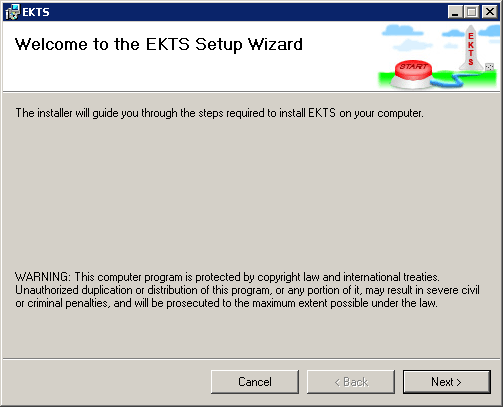
Figure 1: Setup window.
Run the Program
To run the program click on EKTS.exe file and it will open like shown in Figure 2. Also it is possible to open the program by using
shortcut created on user desktop or programs at the start menu.
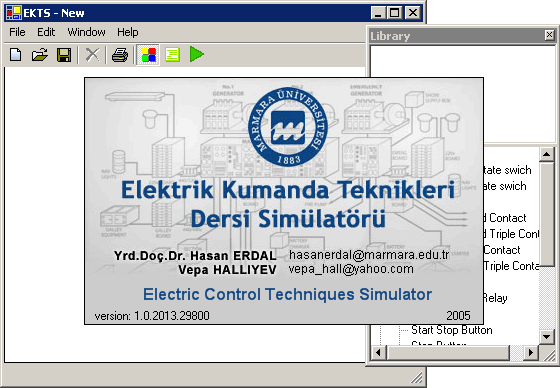
Figure 2: EKTS opening view.
User Interface
EKTS consists of two windows. Main window; used to draw electrical circuits, and the Library window; contains circuit elements. (Figure 3)
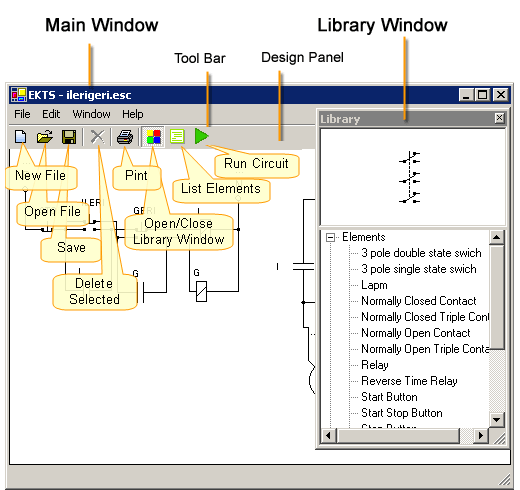
Figure 3: User interface
There is tool bar at the top of the main window. At the tool bar there are buttons for opening and saving files, print previewing, running the circuit, deleting elements, opening and closing library window. There is a panel below tool bar for designing electric command circuits.
In library window there are grouped circuit elements and a panel for viewing selected element. To add element to the main window double click on name of the element.
Working with Files
There are simple tasks to handle with files like opening a new file, opening an existing file and saving modified file.
To open a new file simply click on  New file button located at the tool bar or from menu combination File -> New .
To open an existing file click on  Open File button or access open file dialog window from File -> Open menu. On dialog window find file to open and click Open button.
Before opening any file program prompts to save changes made on an existing file if there are such.
To save file click on  Save button or click on File -> Save File menu. For saving file with different name click on File -> Save as menu. On opened dialog window write file name you wish to give to file and click Save button.
To save image of designed circuit select File -> Save as menu and select suitible image filetype from Dialog box.
Design a Circuit
Working with Elements
- Add Element to Drawing Panel
- Move Elements
- Name Elements
- Move Labels of Elements
- Rotate Elements
- Specify Color of Lamp
- Delete Element
Add Element to Drawing Panel
To add element to the drawing panel:
- Select element from Library window.
- Double click on selected element.
Move Elements
Press left mouse button on the element, drag to the destination position and then release the button.
Name Elements
To name the elements:
- Click on the label located on top of the element.
- Type the name in text box, like shown in Figure 4, or select name from combo box.
- Click outside of text box or combo box.
Relays and time relay names must be unique. Contacts are named according to the Relays and time relays used in the circuit. To specify counter values for time relays use same steps.
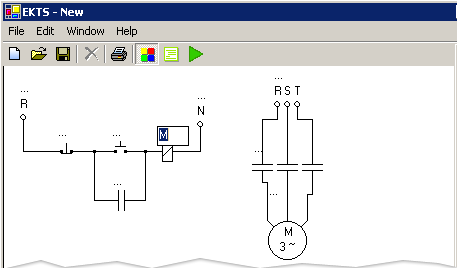
Figure 4: Give a name to a relay.
Move Labels of Elements
To move labels of the elements:
- Select element by clicking left mouse button.
- Drag grayed label, by pressing on it, to the desired location.
When elements moved, element name and counter labels are move together. Counter labels of time relays are moved the same way as name labels.
Rotate Elements
To rotate elements:
- Click right mouse button on the element.
- Select rotation angle from opened context menu as shown in Figure 5.
Connection lines recreated when rotating elements.
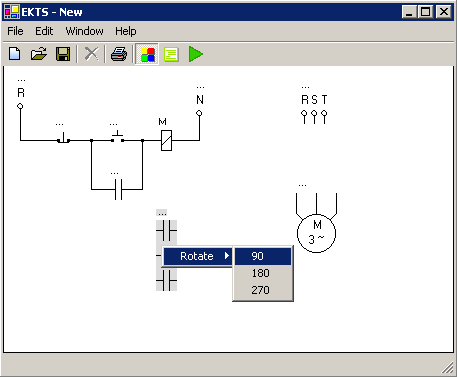
Figure 5: Context menu used to rotate elements.
Specify Color of Lamp
To specify color of the lamp:
- Click right mouse button on the lamp.
- Select color form Color submenu of opened context menu as shown in the Figure 6.
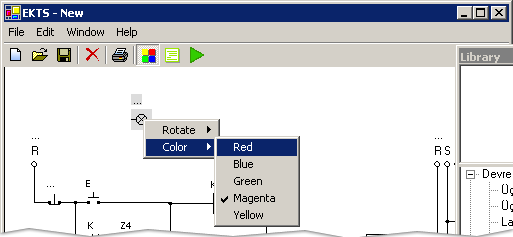
Figure 6: Color menu used to specify color of the lamp.
Delete Element
To delete the element:
- Select element by clicking left mouse button on the element.
- Click on delete
 button located on tool bar or press delete key from keyboard.
Connection lines deleted with elements.
Circuit Connections
Make a Connection
To make a connection follow steps below:
- Move to the connection point of the element till appears red dot.
- Press left mouse button in the small red circle and move mouse pointer to the other connection point.
- Get close to the other connection point of the element, line or node until blue dot appears. (Figure 7)
- Release left mouse button on the appeared blue dot.
- Connection lines drew between specified two dots as shown in the Figure 8.
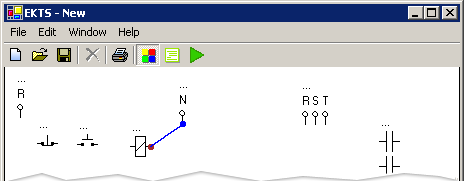
Figure 7: Red and Blue Dots Appeared for Making Connections.
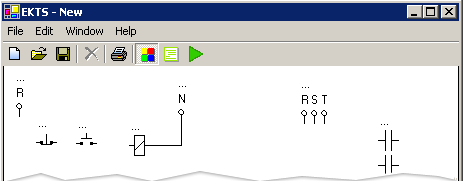
Figure 8: Connection made between connection points of two elements.
Move Connection Line
To move connection line simply press on line using left mouse button and drag line to the desired location. Connection lines can be moved horizontally or vertically.
Delete Connection Line
To delete connection lines follow steps below:
- Select line by using left mouse button. Selected line will convert to red color
- Click delete
 button on tool bar or press delete key on keyboard.
Node
Make a Node
Nodes are automatically created when connection made between element and connection line.
Delete Node
To delete a node:
- Select node by clicking left mouse button in it. Selected node will convert to red color.
- Click delete
 button on tool bar or press delete key from the keyboard.
When node deleted connection lines connected to the node will also be deleted.
Description Text
Make a Description Text
To make a description text:
- Click on Edit -> Add Text menu. Text label will be added to the drawing panel at left top corner.
- Move text label to desired position by using left mouse button.
Edit Description Text
To edit the description text:
- Click right mouse button on the description text.
- Type text in text box that will appear as shown in Figure 9.
- Click outside the text box to apply changes.
- Use right bottom corner of the text label to resize it.
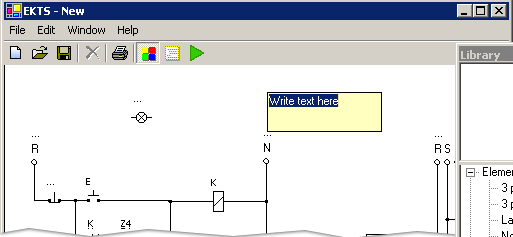
Figure 9: Text box used to edit description label.
Delete Description Text
To delete the description text:
- Click right mouse button on description text
- From the context menu click on Remove Description Text option as shown in Figure 10.
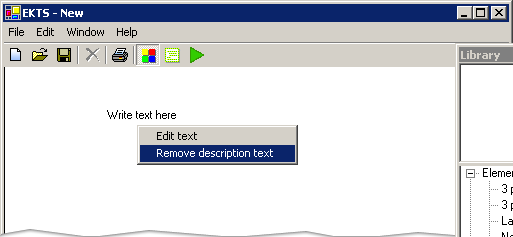
Figure 10: Remove Description Text Option.
List Used Elements
To list used elements:
- Click on
 List Used Elements button on tool bar or Click on Windows > List Used Elements menu from main menu.
 - Relocate list by pressing left mouse button and drugging to desired destination.
To hide list of used elements click on List Used Elements button again.
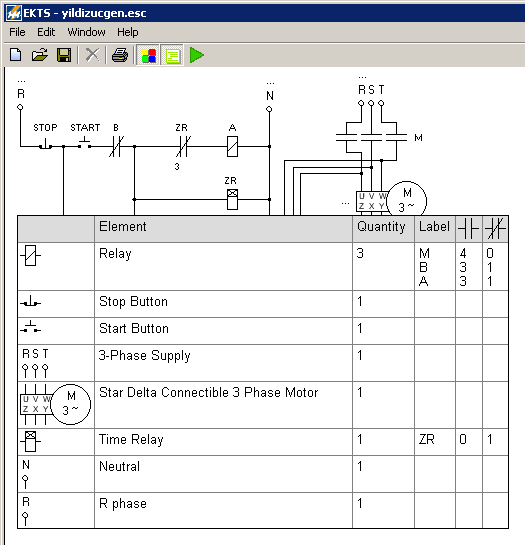
Figure 11: List of used Elements showing quantities.
Design of 3 Phase Motor Start and Stop Circuit
To design this circuit:
- Add and locate used circuit elements.
- Name elements.
- Make circuit connections.
- Add description text if needed.
Run Designed Circuit
To run designed circuit click on  Run button located on tool bar. If there is any problem with circuit, program will alert an error message. You have to correct errors to run the circuit properly.
While program is in run mode, you can control circuit by pressing on start / stop buttons or directly on relays using mouse pointer. To leave switches remaining pressed, right click on them and click again for releasing. In run mode active lines and active elements showed by magenta color as shown in Figure 11. Rotation of motor is specified by green point on it.
To stop circuit click on  Stop button.
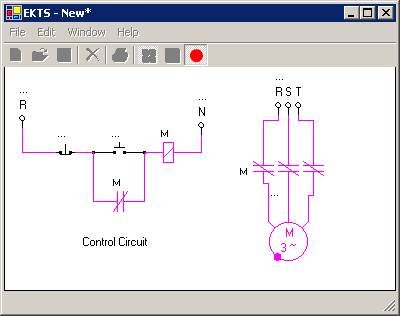
Figure 12: Run mode of the designed circuit.
Print Circuit
To print designed circuit:
- Click on
 Print button on tool bar.
 - Print preview dialog window will appear as shown in Figure 12.
- Click on Print button to print layout.
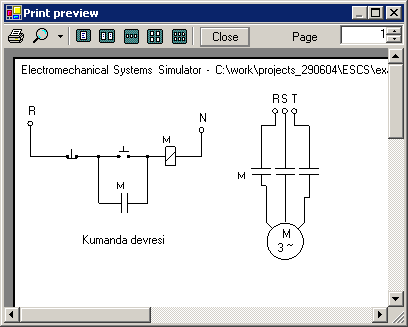
Figure 13: Print preview window
To specify printer and paper options:
- Open Print window by clicking File-> Print Setup menu as shown on Figure 13.
- Select printer from opened dialog window and click on Properties button to specify paper size and location.
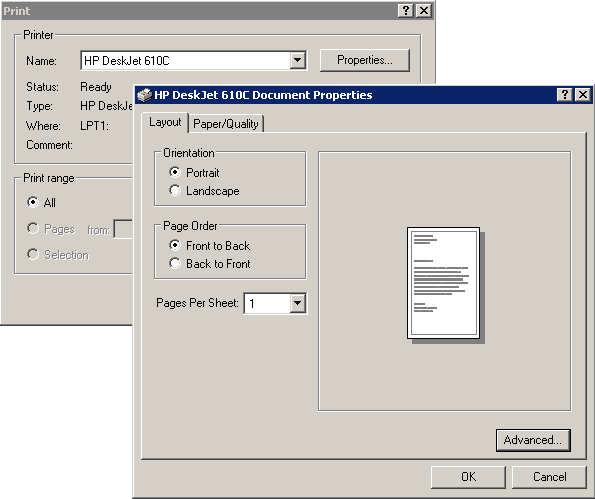
Figure 14: Print and Document Properties Windows.
Examples
Example 1
Design command and motor circuits to run 3 units of 3 phase induction motors as specified below:
- First motor starts to rotate by pressing start button.
- After 5 seconds second motor starts to rotate.
- After 5 seconds as second motor runs third motor will start and first motor stops.
- Second and third motors will stop after 5 second work together.
- Al motors will stop by pressing stop button at any time.
This circuit is designed as shown in Figure 14.
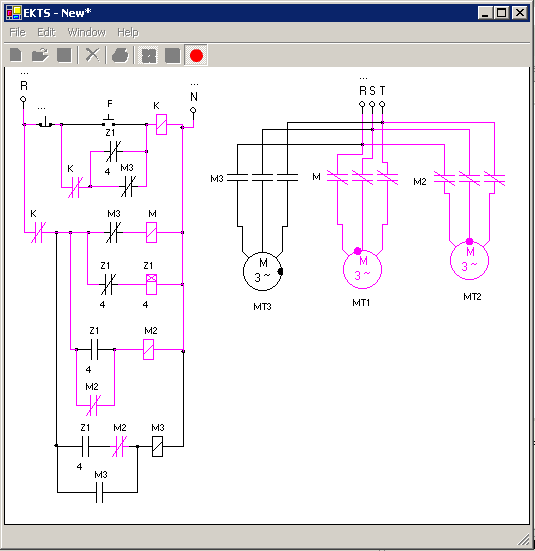
Figure 15: 3 units of 3 phase motor circuit designed with EKTS.
In this circuit “Z1” time relay is used to send pulse in every 5 second. “M1”, “M2” and “M3” relays are used to control 3 phase motors relatively. This relays are controlled by control circuit.
Example 2
Design command and motor circuits to run two units of 3 phase and one unit 1 phase motors as specified below.
- 1 phase motor starts after 3 seconds as start button pressed.
- After 5 seconds as 1 phase motor runs both of 3 phase motors start.
- After 5 seconds as 3 phase motors start 1 phase motor and one of the 3 phase motors stop.
- Working 3 phase motor stops after 10 seconds.
This circuit is designed as shown in Figure 15.
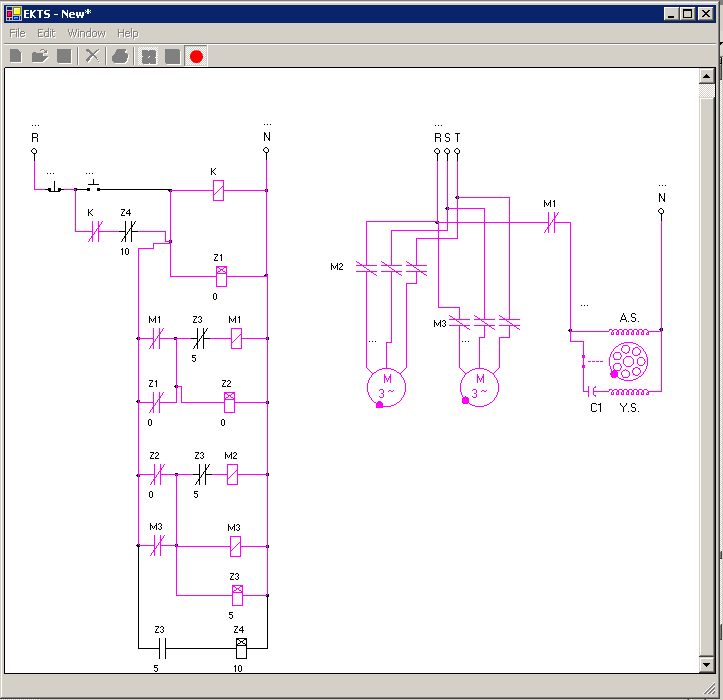
Figure 16: Circuit of one 1 phase and two 3 phase motors designed with EKTS.
In this circuit “M1”, “M2” and “M3” relays used to control three motors. Control of this relays is done in command circuit.
View more Electromechanical circuit examples on ESS documentation page. Most of those examples can be designed in EKTS as well.
Localize EKTS
EKTS was developed for use internationally. There for it has a separate language file which can be modified using Unicode text editor or Microsoft Excel.
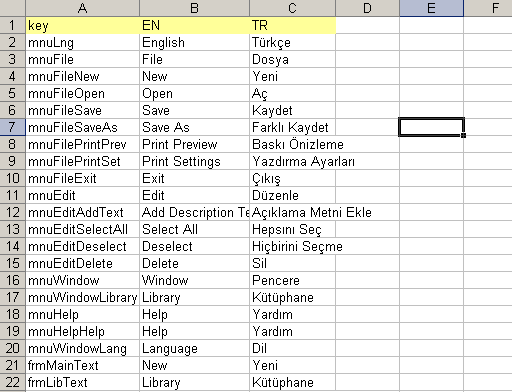
Figure 17: ulng.xls Excel language file.
To add any languages follow descriptions below:
- Open ulng.xls file located in installation folder using Microsoft Excel.
- Each column represents one language. First column contains key values used by software. Do not change first column.
- Add a new language on next empty column similar to previous ones.
- On first row write short initials to be used by program.
- On next rows enter translation of each row. You can translate from English or Turkish.
- After completing translation save file in xls format for further use. And save using save as in Unicode Text file format, in the same folder as EKTS.exe file for being used by software (EKTS).
- Close xls and txt files and run EKTS.
- Select your new added language from Window > Language menu. Your language will be added to the menu automatically.
It is possible to add language using any Unicode Text editor separating each column by tab and each row by new line in ulng.txt file.
Send created language file to address on info page, to make it available to other people who uses your language. Send files compressed in zip format.
Version History
EKTS 1.0.3 (06.12.2005)
- Print multiple pages.
- Select and Move whole circuit.
- Fixed unhandled error message while trying to print preview.
- Update 04.04.2006:
- Bug fix: Corrected behaviour of double state buttons and switches.
- Feature: Added feature fixing / releasing position of buttons and switches by Right clicking.
- Update 13.02.2006:
- Bulgarian language added.
EKTS 1.0.2 (01.9.2005)
- Summarize used elements with quantities.
- Save designed circuit as image. Supported file formats are: JPG, GIF, PNG, BMP.
EKTS 1.0.1 (13.07.2005)
- First release
Info
Supervised by
Yrd.Doc.Dr. Hasan ERDAL
Department of Control Education, Marmara University , Istanbul, Turkiye
E-mail: herdal { at } marmara.edu.tr
Programmed and developed by
Veppa Hal (Computer and Control Teacher, MSc.)
E-mail: vepa_hall { at } yahoo.com
Simulator was designed for THESIS FOR THE DEGREE OF MASTER OF SCIENCE.
Publication name: ELEKTRIK KUMANDA TEKNIKLERI DERSI SIMULATOR PROGRAMI TASARIMI (Design of a Simulator for Usage in Electrical Control Techniques Course Applications)
Publication date: 2005
Place: Marmara University , Institute of Science , Department Electronic & Computer Education, Computer & Control Program, Istanbul , Turkey .
Web: www.marmara.edu.tr

Official website: veppa.com